Edit a video with OpenClip AI
Apply a specific operation such as trimming, cropping or resizing, then inspect the result before starting another edit.
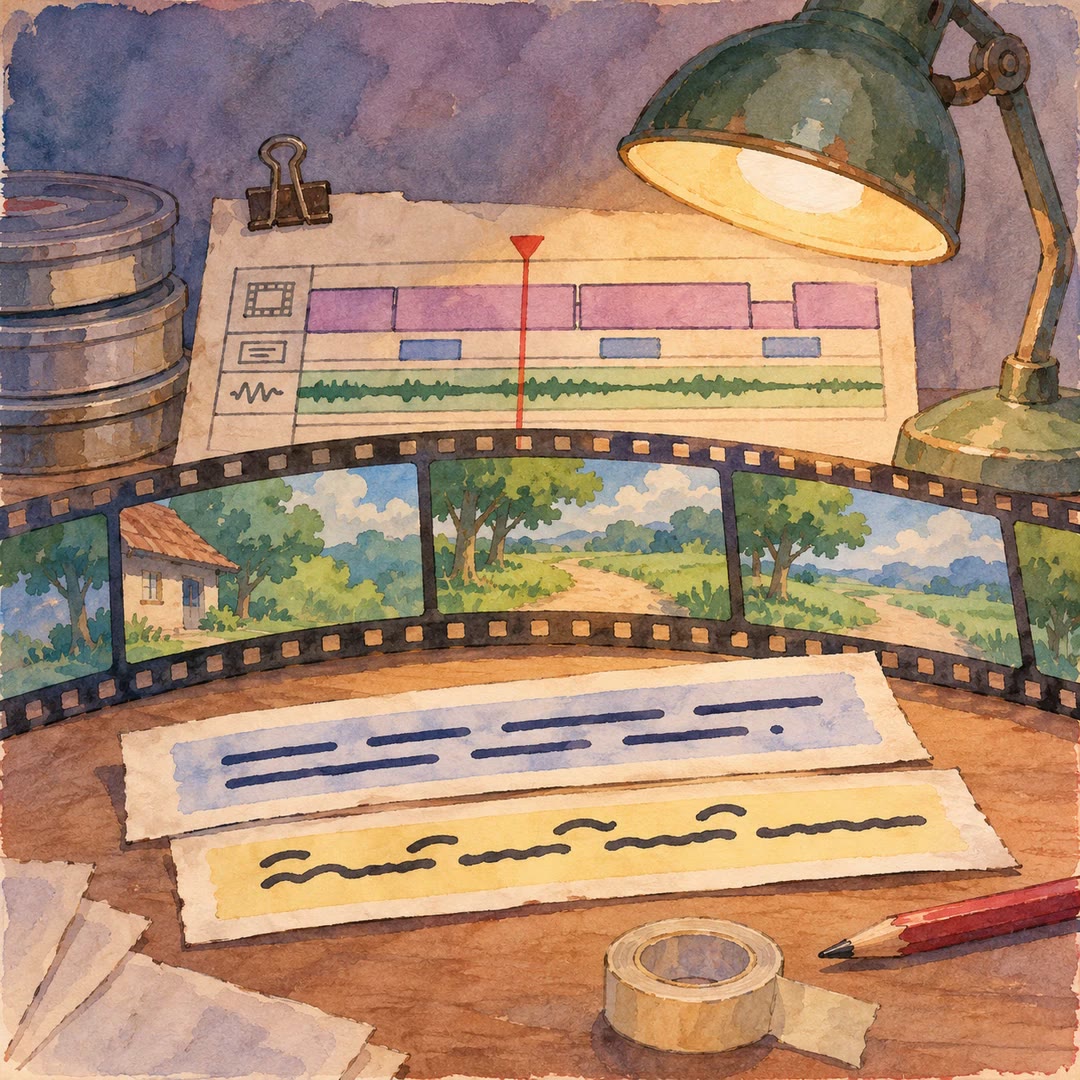
Editors can edit a video with OpenClip AI when they know which part of a clip needs to change. The openclip-video-editing skill submits one operation at a time through the account and follows the job until an output or an error is available.
For a product demonstration, begin by finding the sentence that explains a feature. A time trim keeps that passage; a later crop changes the picture around it. Reviewing the time cut first helps avoid framing a moment that will be removed from the final version.
What it does
- Trim an authorised recording to a selected time range.
- Crop the frame to suit a particular layout.
- Resize an output for its intended display.
- Check the job state and inspect the completed result.
- Chain distinct edits by selecting the correct output from the previous job.
Install and use
- Install the skill and connect an OpenClip account. The source is uploaded and the result has a permanent unsigned CDN link. Choose material suitable for that access model.
- Ask “Trim this demo to the ten-second explanation, then return the result before changing its framing.”
- Play the output and specify the next operation only after confirming the selected passage.
FAQ
Source
Made by OpenClip (Oak Ridge Ventures). Original skill: openclip-video-editing, published on GitHub under the MIT licence.
View on GitHubRelated products
- SkillNew
Edit English and Thai demo videos with AI
Prepare editable FCP7 XML timelines and English/Thai caption images from your footage, then finish and export in your video editor.
Free - SkillNew
Prepare Amazon videos with AI
Inspect a video for its selected Amazon placement, review evidence frames and reports, and deliberately export a corrected MP4 when useful.
Free - SkillNew
Compose a talking-head video with AI
Combine prepared landscape footage, subject masking, timed text and premixed audio into a reviewed talking-head export.
Free