Extract video thumbnails with AI
Extract still frames from a video, choose the one that works at thumbnail size, then crop, resize or compress it through OpenClip.
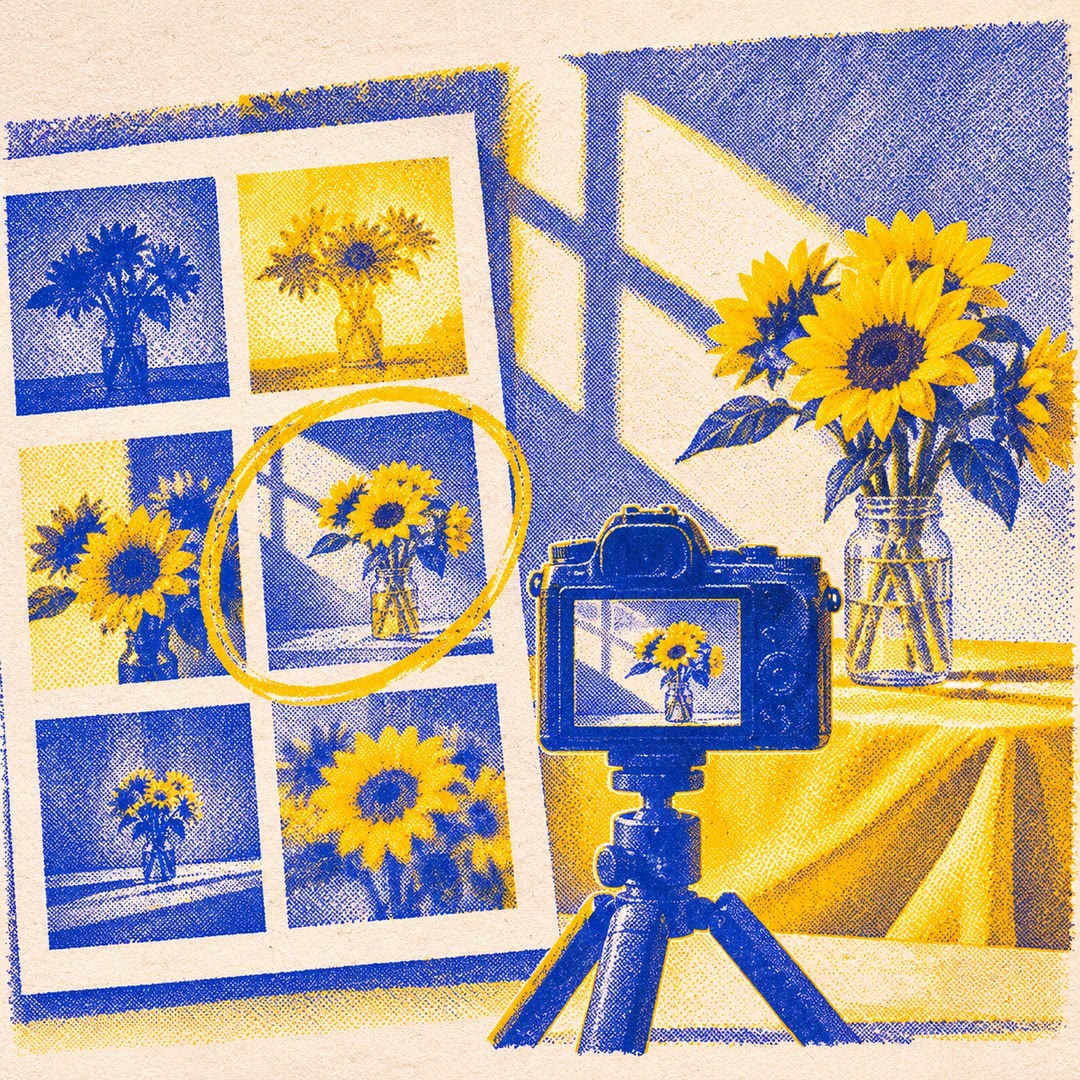
To extract video thumbnails with AI, decide whether you already know the moment that matters. A product demonstrator pressing a particular switch gives you a time to target. For a longer tutorial, a spread of frames is a better starting point for choosing a cover.
The openclip-thumbnails skill extracts stills as a ZIP and can pass a selected image to OpenClip’s editing tool. It can change dimensions, crop or convert the result. The files sit on unsigned CDN links that do not expire, so consider the subjects in the frame before sending one on.
What it does
- To target a particular moment, trim the source separately before extracting a still.
- Pull evenly spaced frames to compare possible covers.
- Crop a wide still for a square course card.
- Resize an extracted frame to match a website slot.
- Convert a heavy image and compare fine details at its intended display size.
Install and use
- Install the skill and connect an authorised OpenClip account through MCP. Standalone image tools have file-size and daily limits.
- Ask, “Pull five evenly spaced frames and crop my preferred one for a square card.”
- Wait for the job, review the actual crop and share the persistent link only when the material is suitable.
FAQ
Source
Made by OpenClip (Oak Ridge Ventures). Original skill: openclip-thumbnails, published on GitHub under the MIT licence.
View on GitHubRelated products
- SkillNew
Review photography with AI
Understand how composition, light, colour and expression affect a photograph, then turn the feedback into a specific experiment for your next image.
Free - SkillNew
Photo critique with AI
Review composition, lighting and editing with advice suited to your actual tools.
Free - SkillNew
Make a photo contact sheet with AI
Give a reviewer one image showing a whole folder of shots. Add filenames or numbers so you can both refer to the same frame when choosing a shortlist.
Free