Check Word document accessibility with AI
Inspect a DOCX file for problems that are easy to miss in print, including false headings, unlabeled table headers and links that make little sense on their own.
You can check Word document accessibility with AI before circulating a handbook to staff or sending a course guide to students. The word-accessibility skill reads the structure behind the page and returns findings that identify the affected part of the document.
A heading made with a bigger font looks convincing on paper. Yet someone navigating by headings may pass straight over it. This review can point its author to the right paragraph and explain which Word feature to use when making the correction.
What it does
- Find gaps in the heading hierarchy and text styled to resemble a heading.
- Check whether a table identifies its header row.
- Distinguish decorative images from illustrations that convey useful information.
- Locate list items made with typed symbols instead of Word’s list formatting.
- Review link wording and the title or language stored in the document properties.
Install and use
- Install the skill with its shared accessibility rules and give your agent an authorised DOCX file. No separate scanning account is needed for local inspection.
- Ask “Review this student guide and tell me where an author should make each correction in Word.”
- Apply a proposed change in a copy and run the same review on the revised file.
FAQ
Source
Made by Community Access. Original skill: word-accessibility, published on GitHub under the MIT licence.
View on GitHubRelated products
- SkillNew
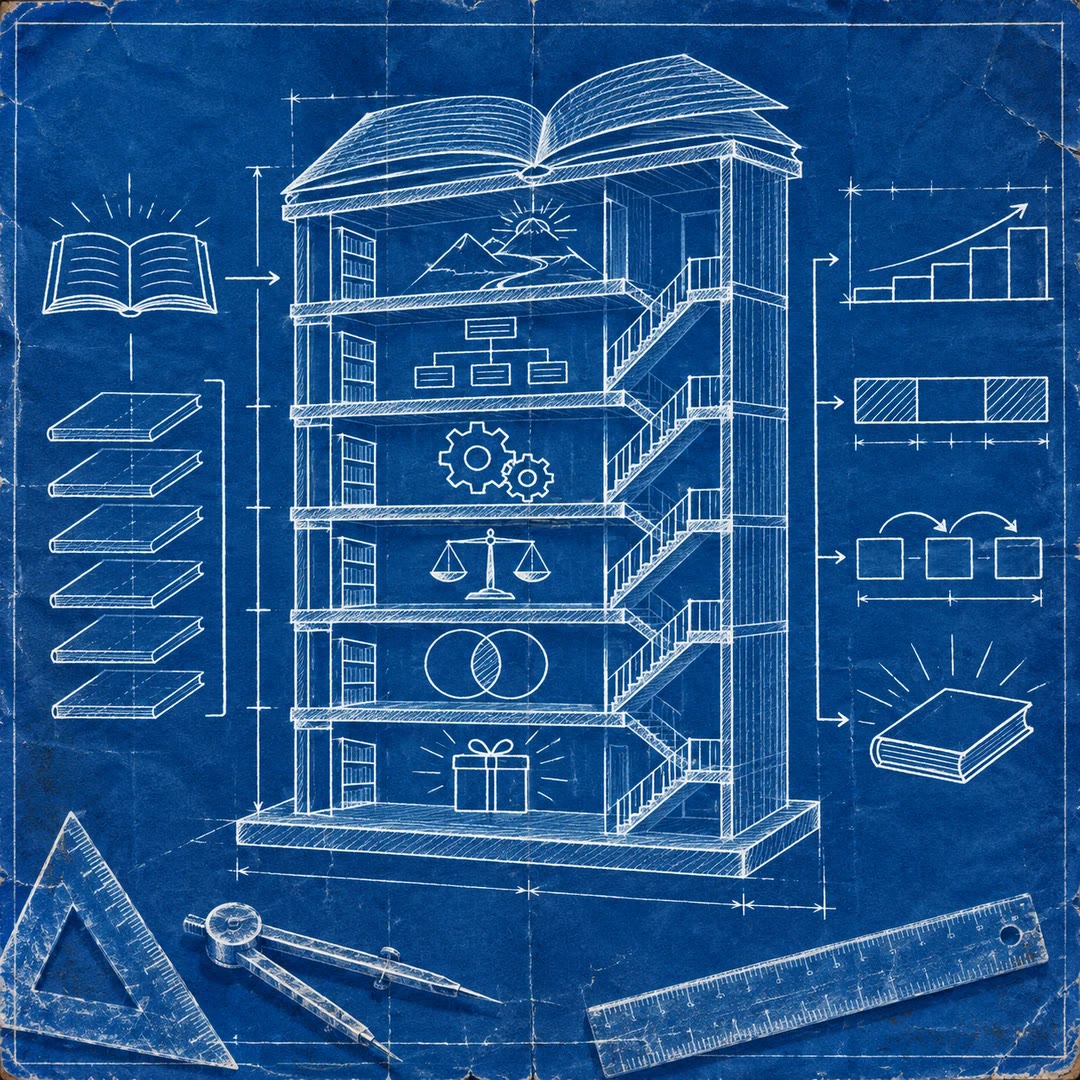
Plan a book structure with AI
Clarify the book’s promise and each chapter’s contribution, then examine progression, balance, repetition and the payoff for its intended reader.
Free - SkillNew
Create Japanese and English HTML slides with AI
Build editable HTML decks with charts, tables and optional illustrations, then inspect browser-rendered slides and exported PNGs.
Free - SkillNew
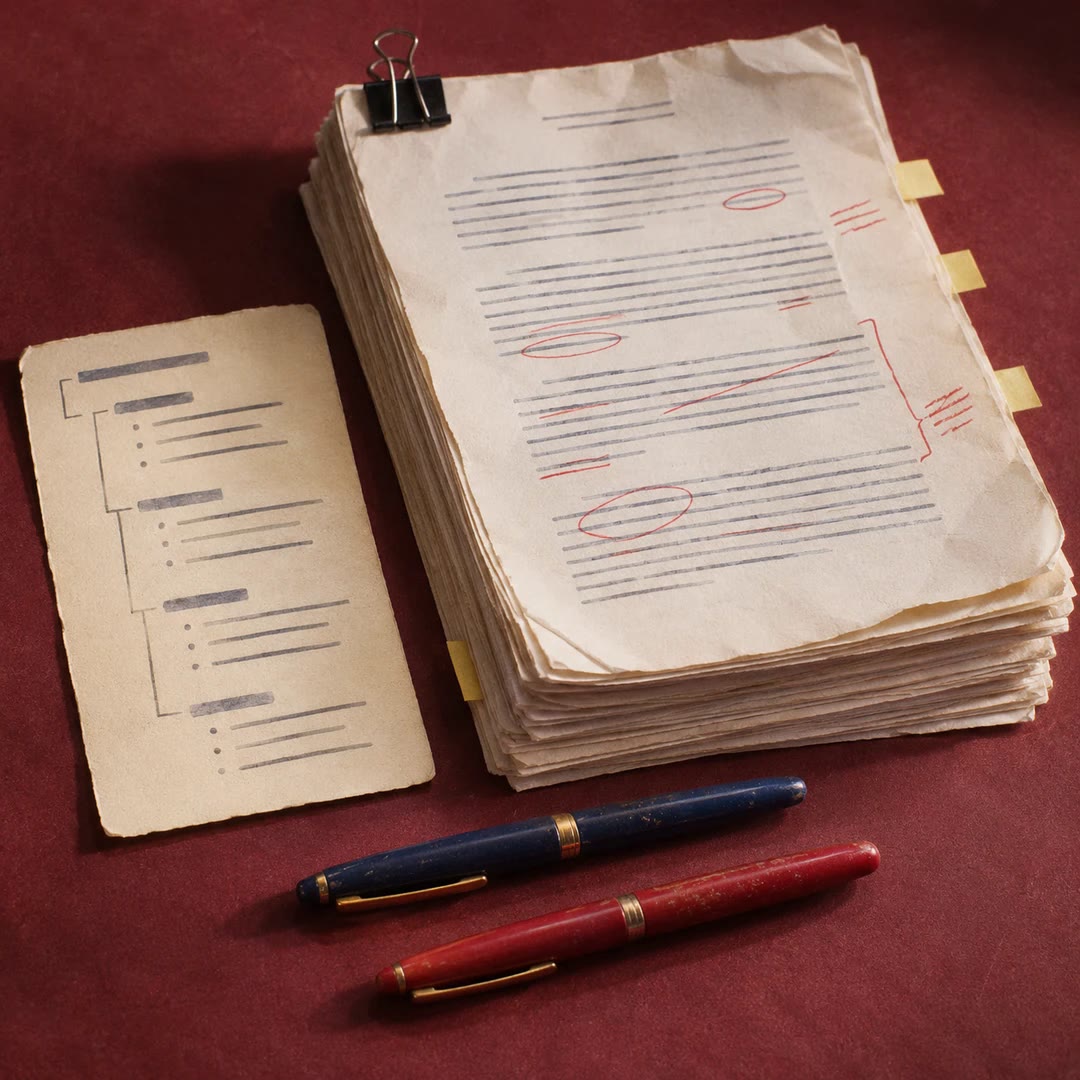
Write a book with AI agents
Develop your own material through an approved outline, separate drafting and review roles, and a whole-manuscript check before requesting a verified export.
Free