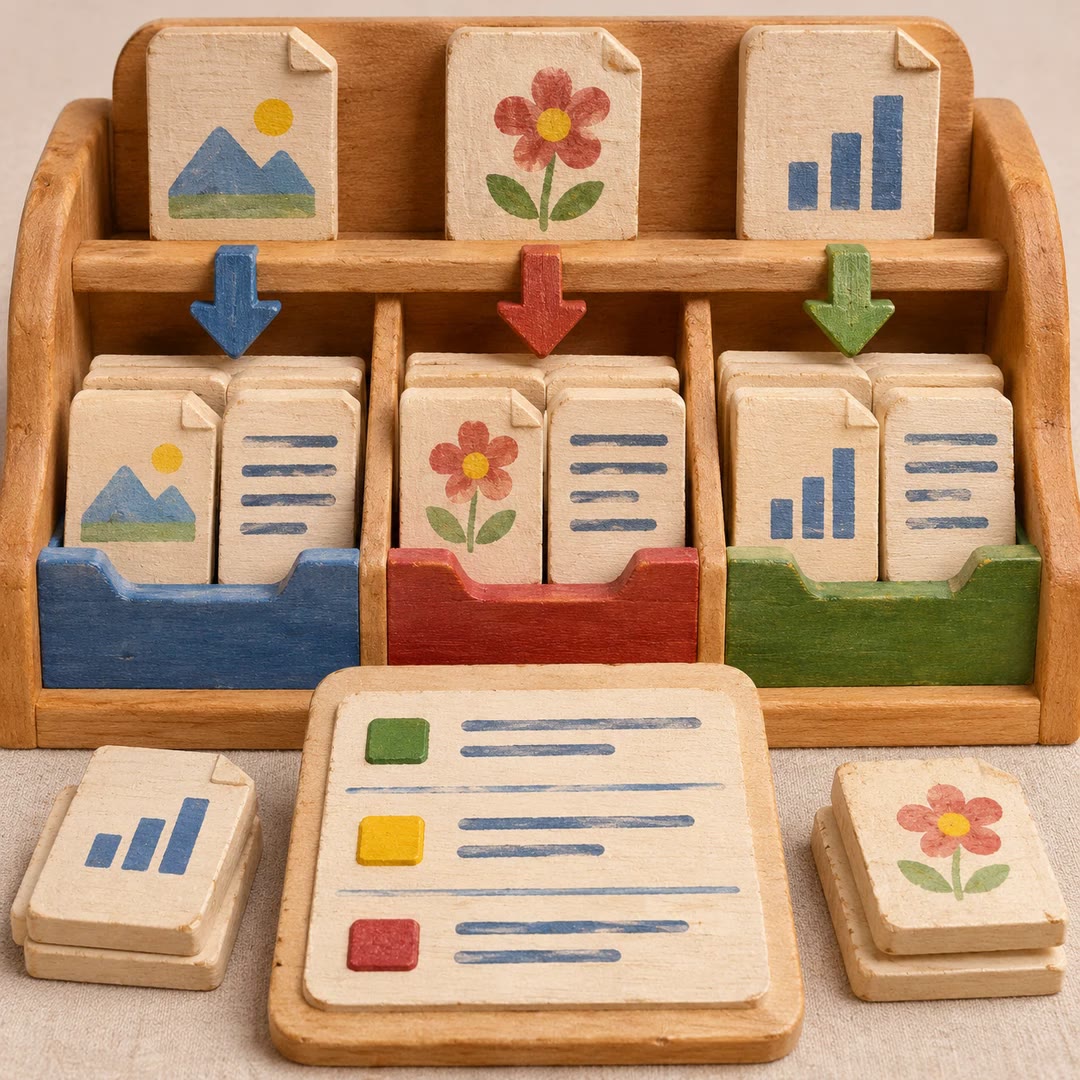
Share a Google Drive folder with AI
Give collaborators the access their work requires and verify the roles recorded for the chosen folder.
To share a Google Drive folder with AI, tell recipe-share-folder-with-team which folder holds the project and what each person needs to do. The agent finds the folder, grants writer or reader access to the named accounts and lists the permissions afterwards. The final list is a useful check when a colleague has more than one Google account.
Choose the folder level carefully. A designer may need the working files while a manager only needs the approved material. Granting access to a parent folder can make its contents available as well, so a narrower delivery folder may be the better destination for that manager.
What it does
- Find a Drive folder using its project name
- Check that its contents suit the intended audience
- Give a collaborator permission to edit
- Give a stakeholder permission to read
- Inspect the permission list after the grants
Install and use
- Install the recipe, gws and its Drive companion. Connect an account with authority to change permissions on the chosen folder.
- Ask “Find the spring catalogue delivery folder. Show me the folder, the designer's writer role and the manager's reader role before applying them.”
- Read back the permissions and compare each account with your project list.
FAQ
Source
Made by Google Workspace CLI contributors. Original skill: recipe-share-folder-with-team, published on GitHub under the Apache-2.0 licence.
View on GitHubRelated products
- SkillNew
Organise PKA documents with AI
Review proposed destinations, retain extracted text beside originals and inspect a report of routed files, unavailable OCR and unresolved items.
Free - SkillNew
Record work decisions with AI
Preserve a decision’s reasoning, rejected alternatives and a checkable condition for revisiting it in a new, structured Markdown note.
Free - SkillNew
Maintain project memory with AI
Keep project facts, current status, decision history and unfinished handovers in separate files that the next working session can inspect.
Free