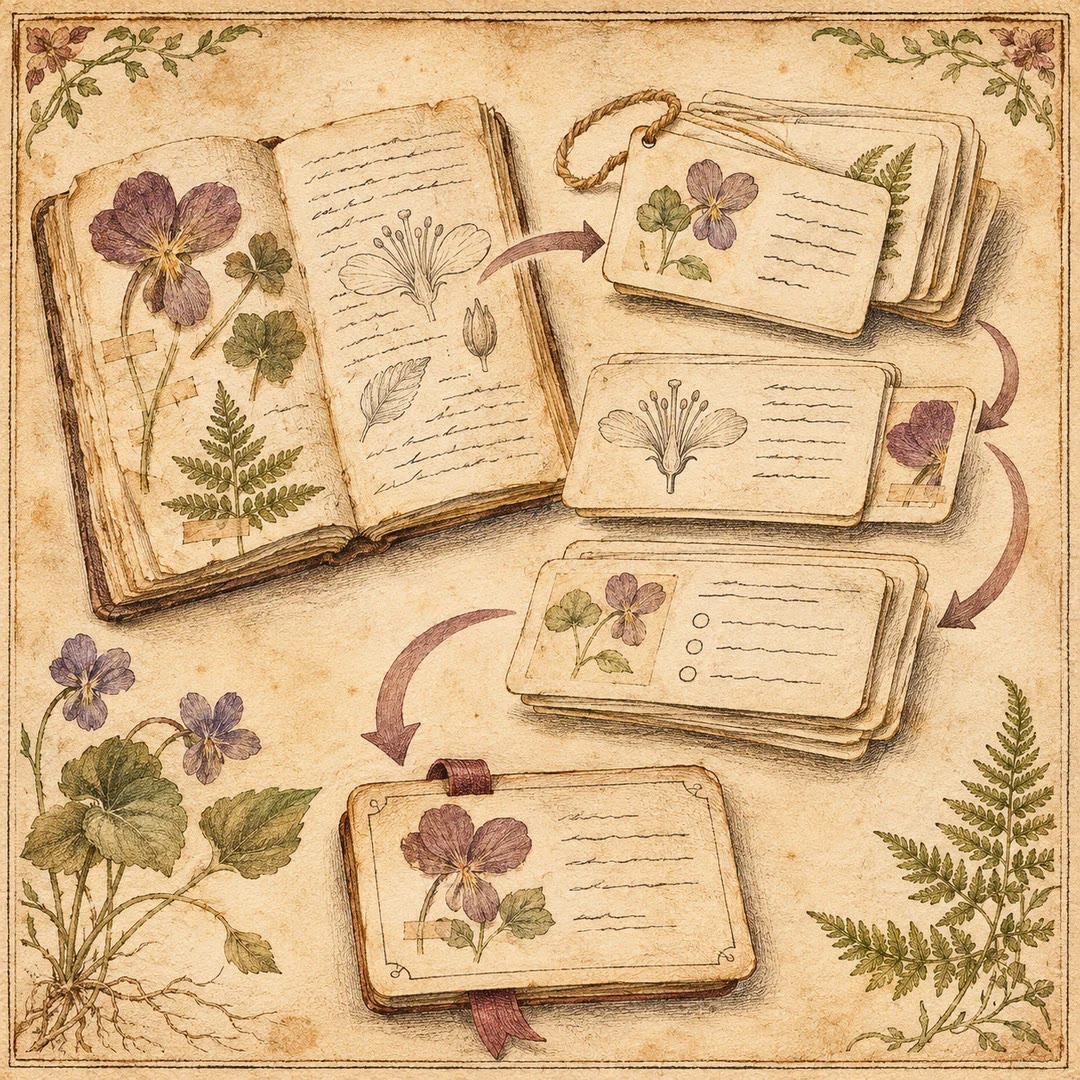
Book notes in Notion with AI
File your chosen highlights and reactions into the right book and chapter
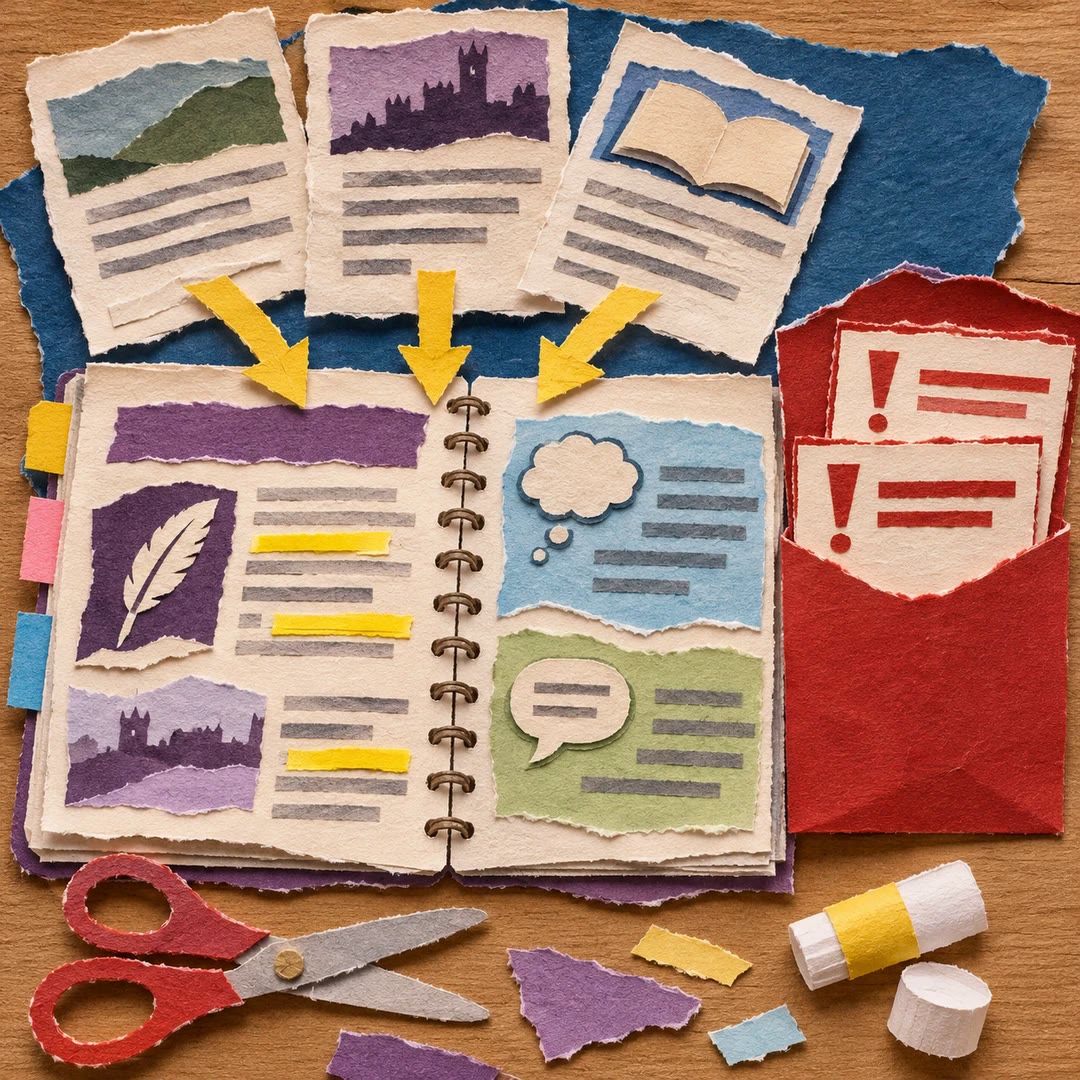
Book notes in Notion with AI begin with passages and reactions you choose to send. The reading-ledger skill files them into the relevant book page and section, adding a short labelled capsule and selective emphasis when enough material is available.
Your highlights and comments must remain verbatim, distinct from the agent’s additions. Unclear boundaries between a quotation and your reaction require clarification. The workflow grows your own notes; it does not automatically extract highlights from a reading app or establish that you have learned or will remember the material.
What it does
- Create one page for each book
- Preserve highlights and personal reactions
- Organise chapters or book-specific sections
- Add concise capsules when material is sufficient
- Emphasise selected load-bearing lines
- Return a receipt naming the book and section
Install and use
- Prepare the instructions in a supported host such as Claude or ChatGPT with a Notion connector authorised to read and write the chosen ledger page. Host or connector access may require a paid plan; the free skill does not cover service charges.
- For example: “This is a highlight from chapter three of my gardening book, followed by my own reaction. File them separately without changing either.” Identify the ledger and book.
- Clarify ambiguous book, chapter or quotation boundaries. Append or insert locally rather than replacing the entire page.
- Review the receipt and saved result. Finish-book summaries remain yours to review; an existing time-ledger handoff is a separate optional workflow.
FAQ
Source
Made by zhuli. Original skill: reading-ledger, published on GitHub under the MIT licence.
View on GitHubRelated products
- SkillNew
Study a book page by page with AI
Turn a readable page into its central idea, a relevant work example and a short memory cue, with optional quizzes and notes requested separately.
Free - SkillNew
Learn from your notes with AI
Use your own materials for clear explanations, source-linked answers and practice, then keep a learning card that helps a later session resume accurately.
Free - SkillNew
Build English exam revision guides with AI
Combine authorised course sources into an English revision guide, keeping explicit exam announcements separate from uncertain predictions and generated answers.
Free